User guide
Everything Cantate can do
A walk through planning a Mass, building your hymn library, assigning voice parts, keeping lyrics and sharing it all with the choir.
Getting started
Create an account, then create your choir or join one with a code from your director.
- 1Sign in with a password or with a one-time code sent to your email — no password needed.
- 2On Your choirs, enter the join code your director shared — or search for the choir and Request to join; its owners get an email and approve you from the People page. (Only the site administrator can create new choirs.)
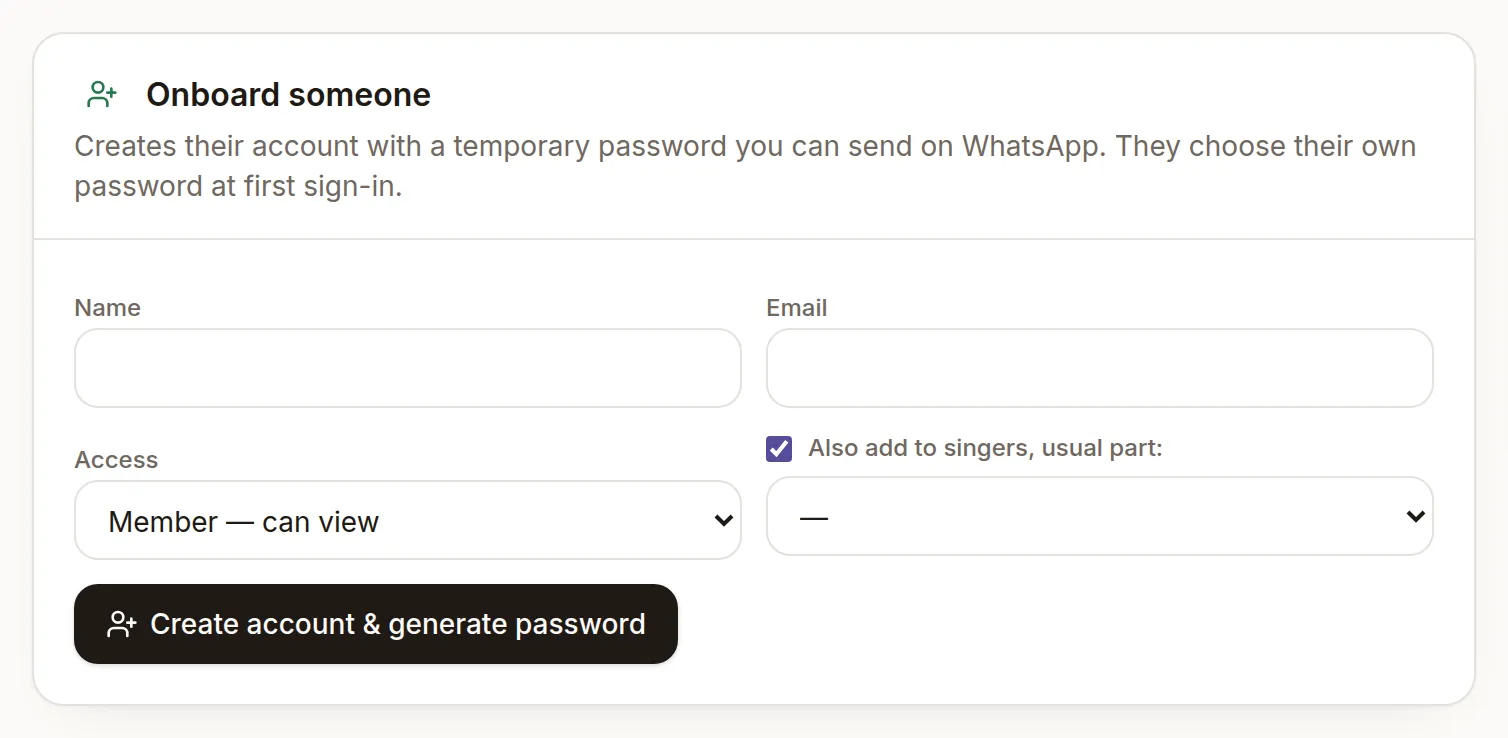
- 3In People, onboard the rest of the team: Cantate creates their account with a temporary password you can send on WhatsApp or by email. Owners can correct anyone's name there with the pencil.
- 4In Settings, adjust the voice parts (Soprano, Alto Descant, Keyboard…) and Mass slots (Entrance, Offertory…) to match your parish.
Press ⌘K (Ctrl+K on Windows) anywhere to jump to a hymn, a service or a page.
Removed a hymn by mistake? Tap Undo in the message that appears.
Owners manage roles, admins can edit everything, members can view and share.
Forgot your password? Choose “Forgot your password?” and sign in with an email code.
Prefer dark mode? The sun/moon button next to your name offers Match device, Parchment, Linen, Midnight and Cathedral themes. Your choice is remembered on that device.
Dashboard
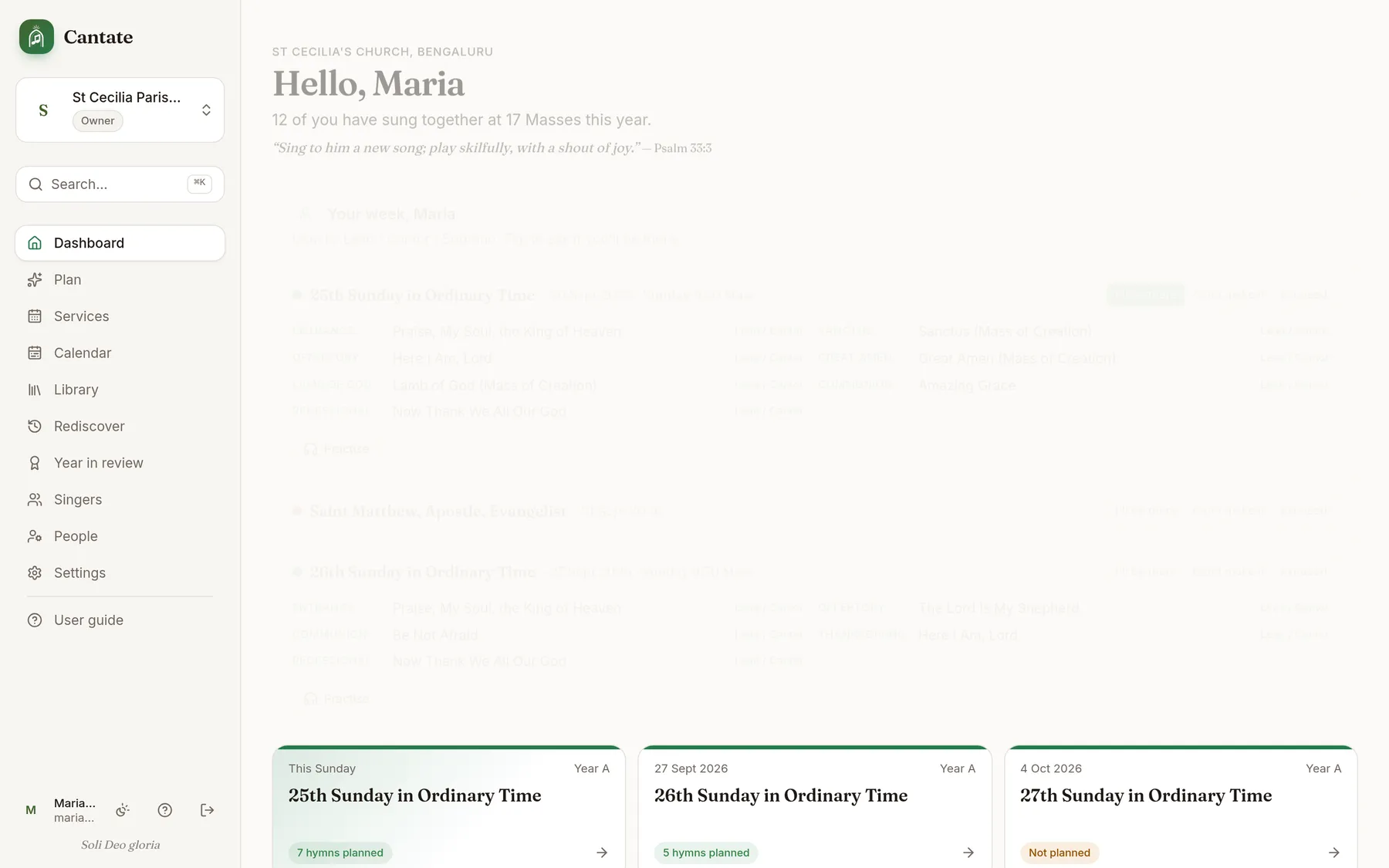
The dashboard shows the upcoming Sundays and feasts, how many hymns are planned for each, and your choir's numbers. The whole app takes on the liturgical colour of the coming Sunday — green in Ordinary Time, violet in Advent and Lent, white for feasts.
- 1Tap a Sunday card to open its service, or to start planning it.
- 2Most sung this year and Gems to bring back help keep the repertoire balanced.
Plan a Mass
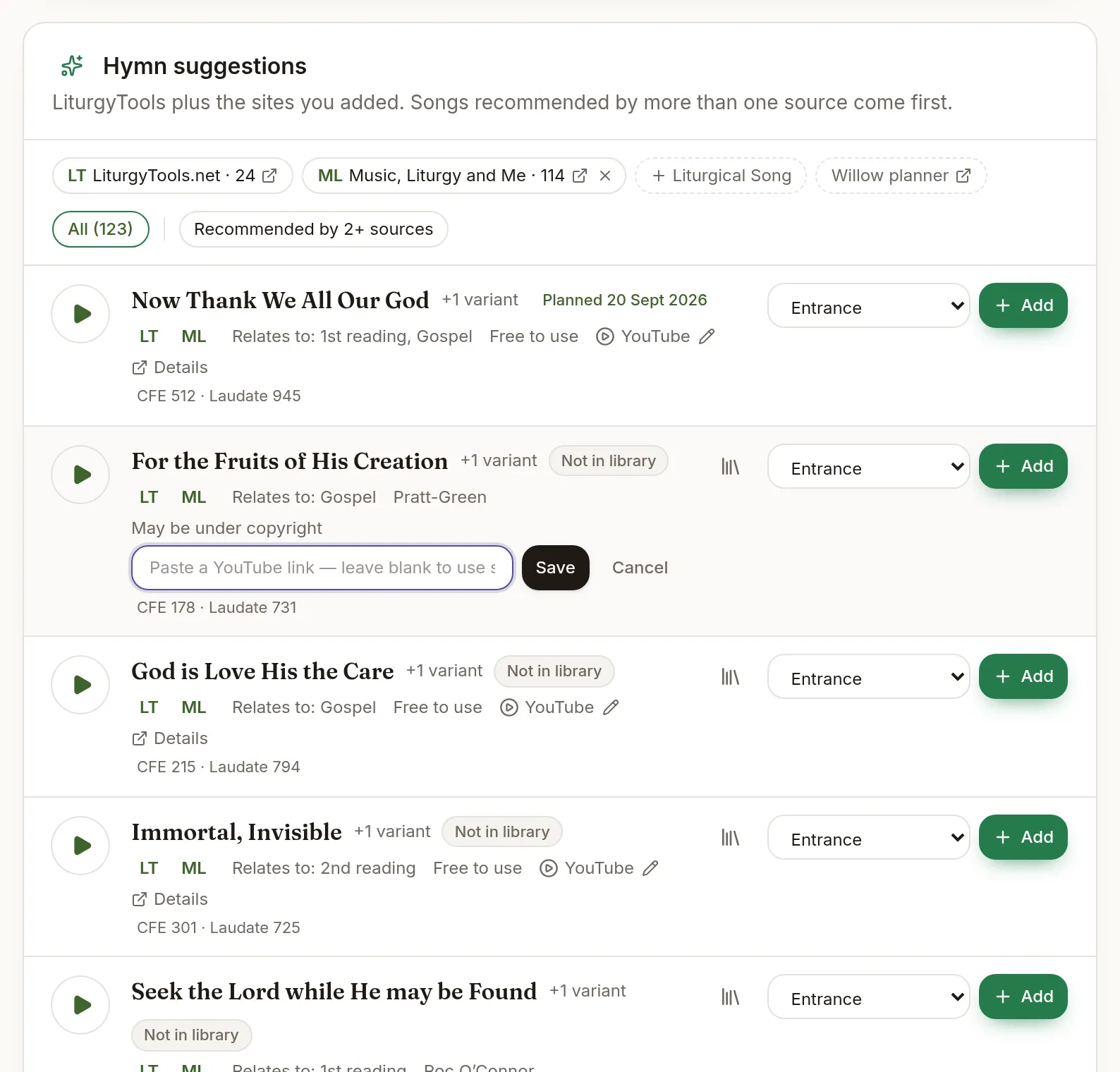
Plan shows the liturgical day for any date — season, Year A/B/C, readings and themes — with hymn suggestions from LiturgyTools.net.
- 1Pick a date (or use the arrows to move Sunday by Sunday). If a feast falls on that day, switch between the celebrations at the top.
- 2Create the service for the day, then use Add on any suggestion to put it in a slot.
- 3Each suggestion shows whether it's in your library and when you last sang it.
- 4Want a second opinion? Tap + Liturgical Song or + Music, Liturgy and Me to load those sites too. Tap × to hide them again.
“Sung on this day before” lists what you sang for the same celebration in earlier years — tap Reuse to copy it.
YouTube: search or your own recording
Every hymn has a YouTube link. By default it searches YouTube for the title; you can replace that with the video your choir actually uses.
- 1Tap YouTube next to any hymn (in suggestions, on a service, or in the library) to search for it.
- 2Found the right version? Copy its link, then tap the pencil next to YouTube and paste it. Save.
- 3From now on the link says “Our recording” everywhere, the hymn shows the video's thumbnail on the service page, and the hymn page plays it inline.
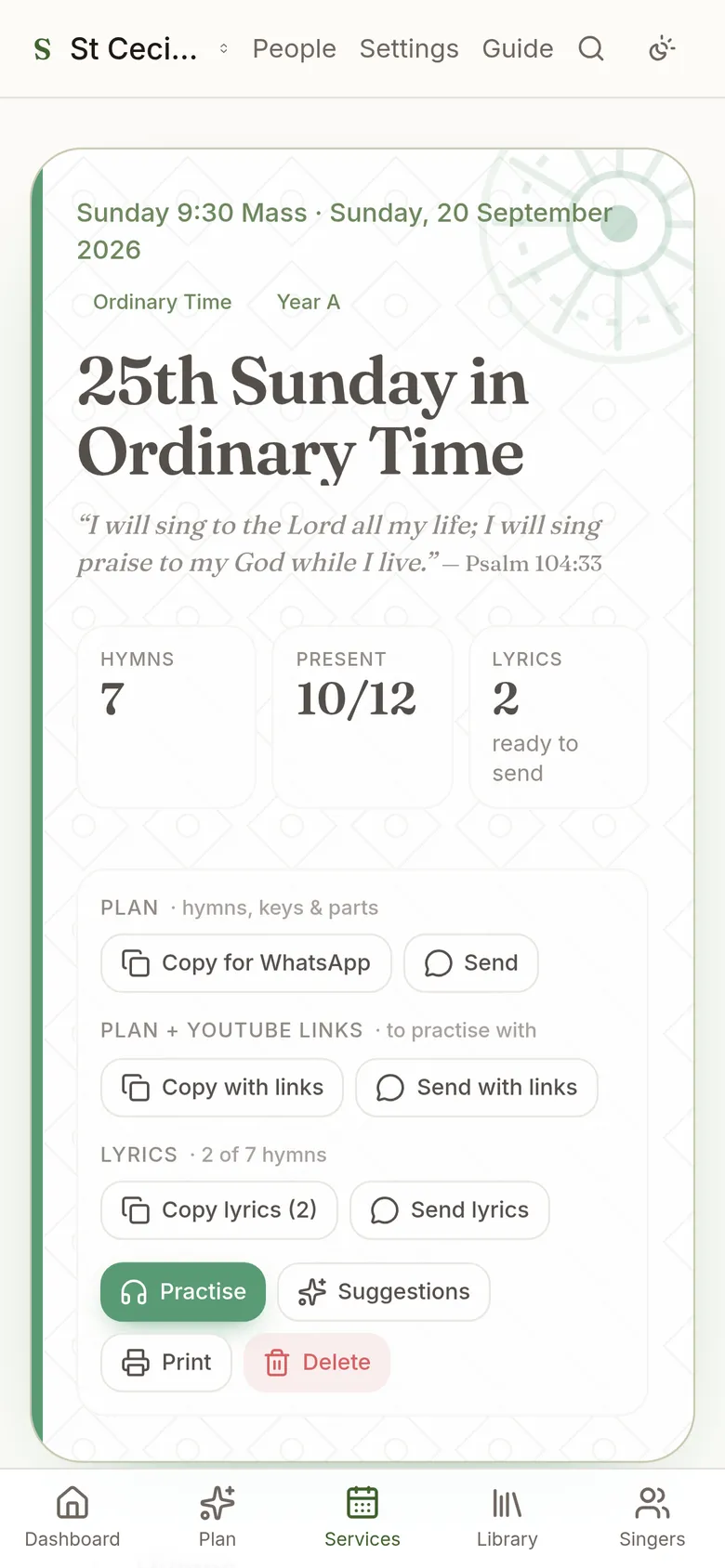
- 4On a service, Send with links shares the plan with a YouTube link under every hymn — your recording where you saved one, a search otherwise.
- 5To go back to searching, open the pencil again, clear the box and save.
Saving a link for a suggestion that isn't in your library adds the hymn to the library for you.
Video, Shorts and playlist links all work.
Services, parts & attendance
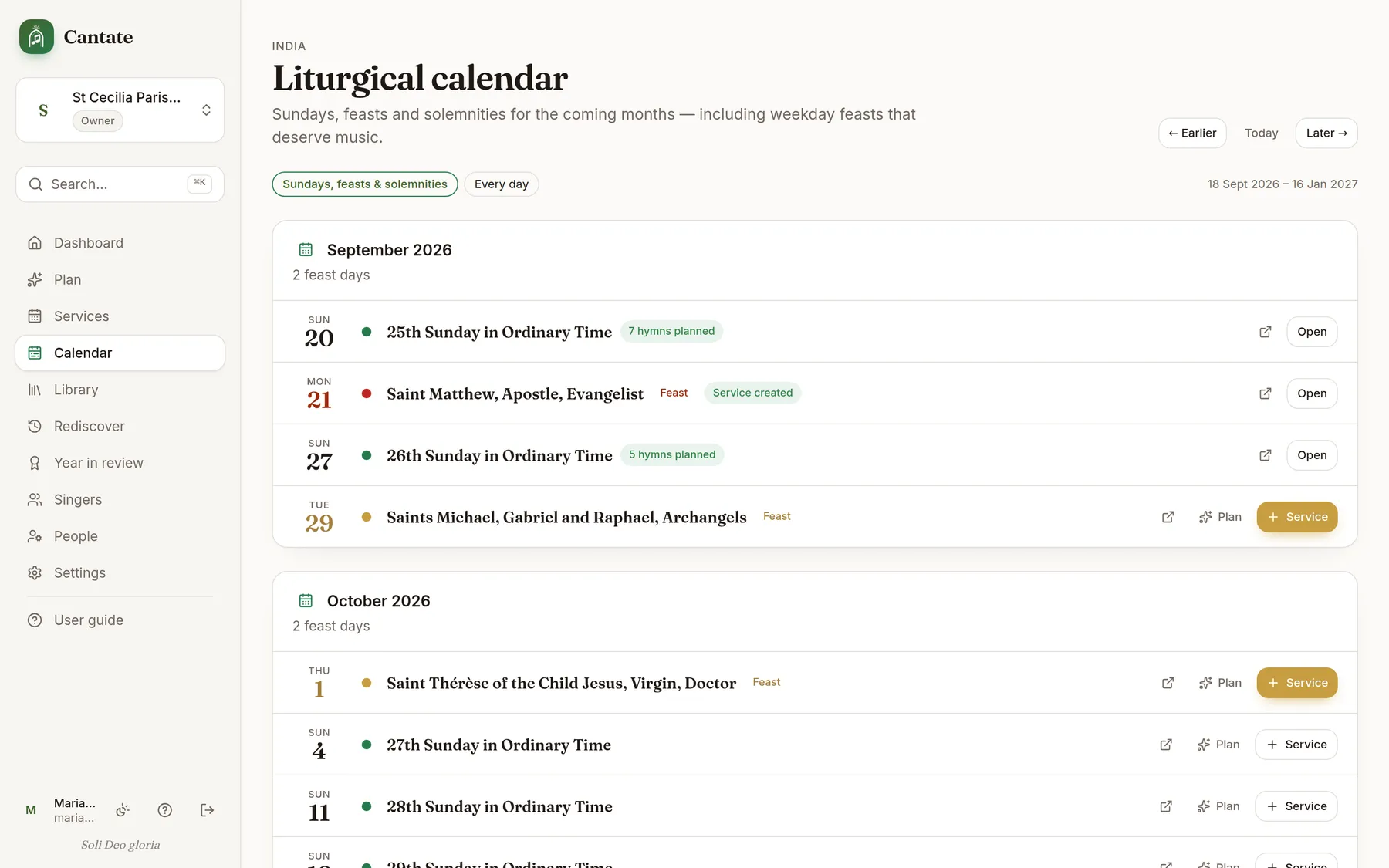
A service holds the hymns for one Mass, who sings which part, and who turned up.
- 1Add hymns by typing a title — pick one from your library or type a new one — and choose the slot. Reorder with the arrows.
- 2Open “Edit slot, key & notes” to change the key for this Mass or note verses (e.g. “Verses 1, 2 & 4”).
- 3Mark attendance with Here / Away / Excused, or tap All here.
- 4Share with the choir from the top of the page: Plan sends hymns, keys and parts; Plan + YouTube links adds a link under each hymn so everyone can practise with the right recording; Lyrics sends the words of every hymn that has lyrics saved. Each has Copy and Send (WhatsApp) buttons. Print gives a clean sheet for the folder.
- 5Every message ends with a link to open the service in Cantate, and a join link for anyone who doesn't have an account yet — they create one and land straight in your choir.
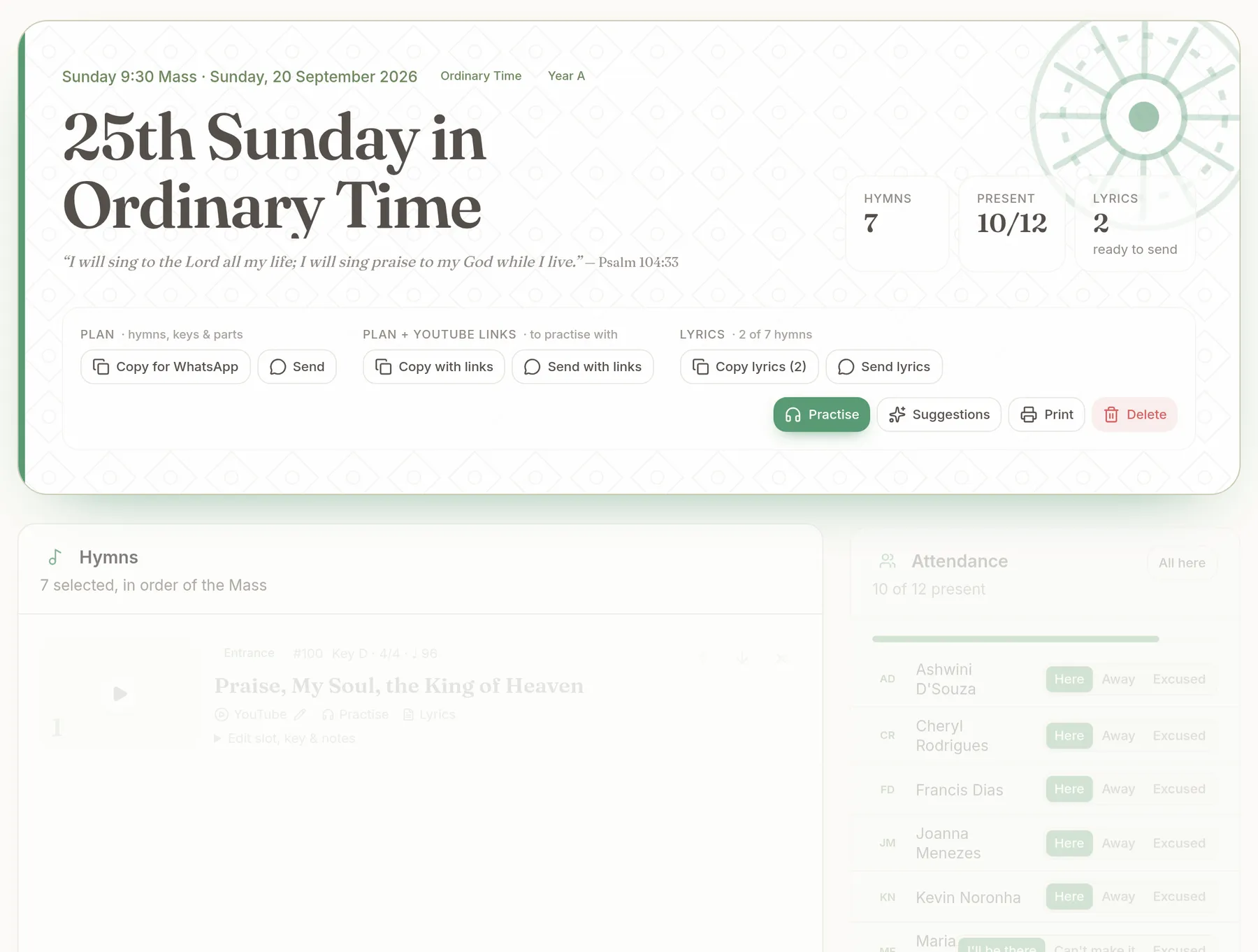
Voice parts
The Voice parts grid shows every singer against every hymn in the service.
- 1Choose a part for each singer in each hymn — it saves as you pick.
- 2Auto-fill uses each singer's default parts (set on the Singers page); Clear starts again.
- 3The Totals row shows the balance, e.g. A 3 · T 2 · B 2, so you can spot a missing section.
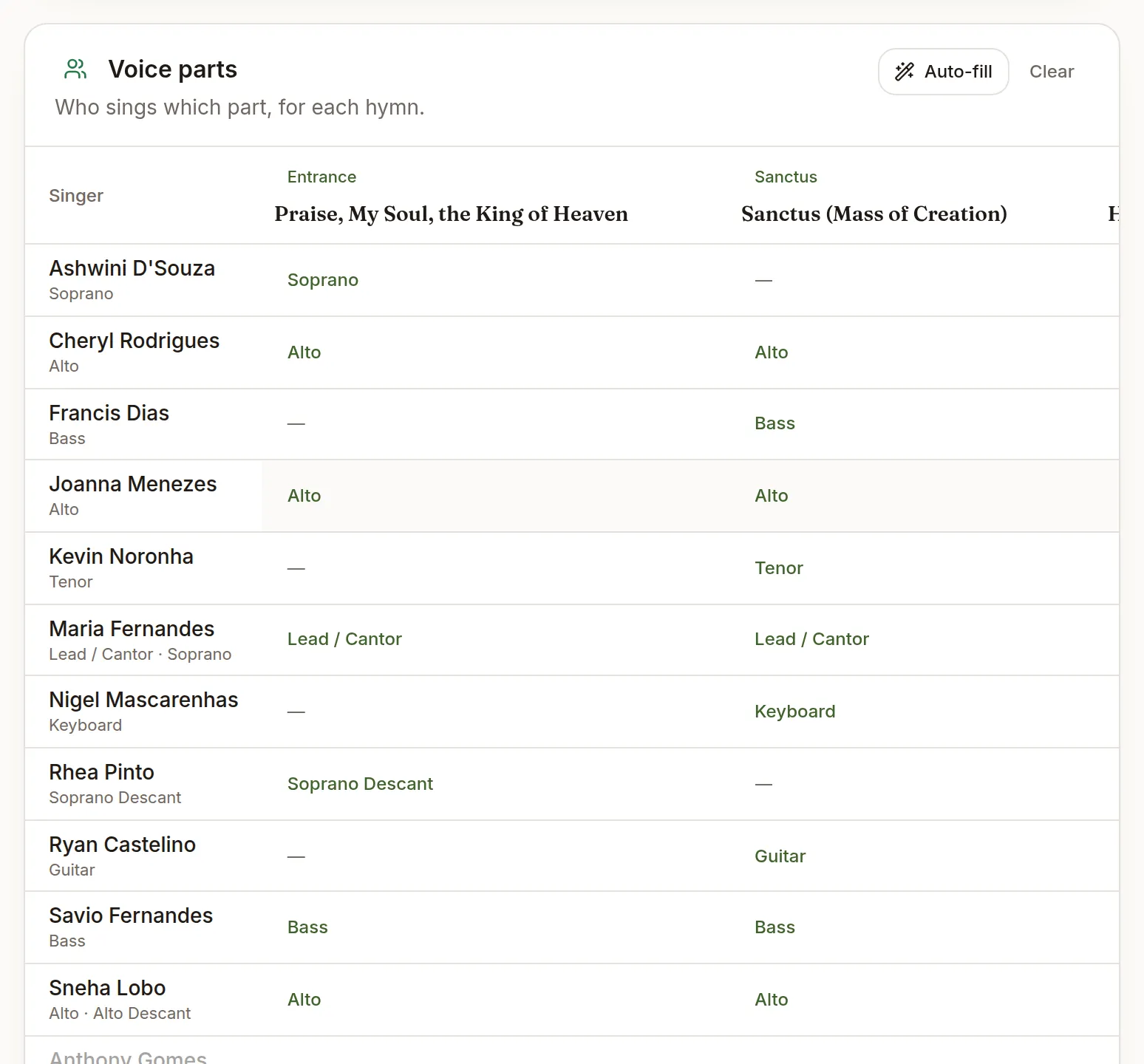
Practice mode
Practice turns a service into a full-screen, one-hymn-at-a-time view: the words large, your recording beside them, and a metronome at the saved tempo.
- 1On a service, tap Practice (or Practice next to one hymn to start there).
- 2Swipe or use ← → to move between hymns; the dots at the top show where you are.
- 3Tap ♩ to start the metronome at the hymn's tempo; – and + nudge it; the beat dots pulse with the bar. Space bar also starts and stops it.
- 4Use the T buttons to make the words bigger, and the corner button for full screen.
- 5If your email is on your singer record, each hymn shows the part you sing.
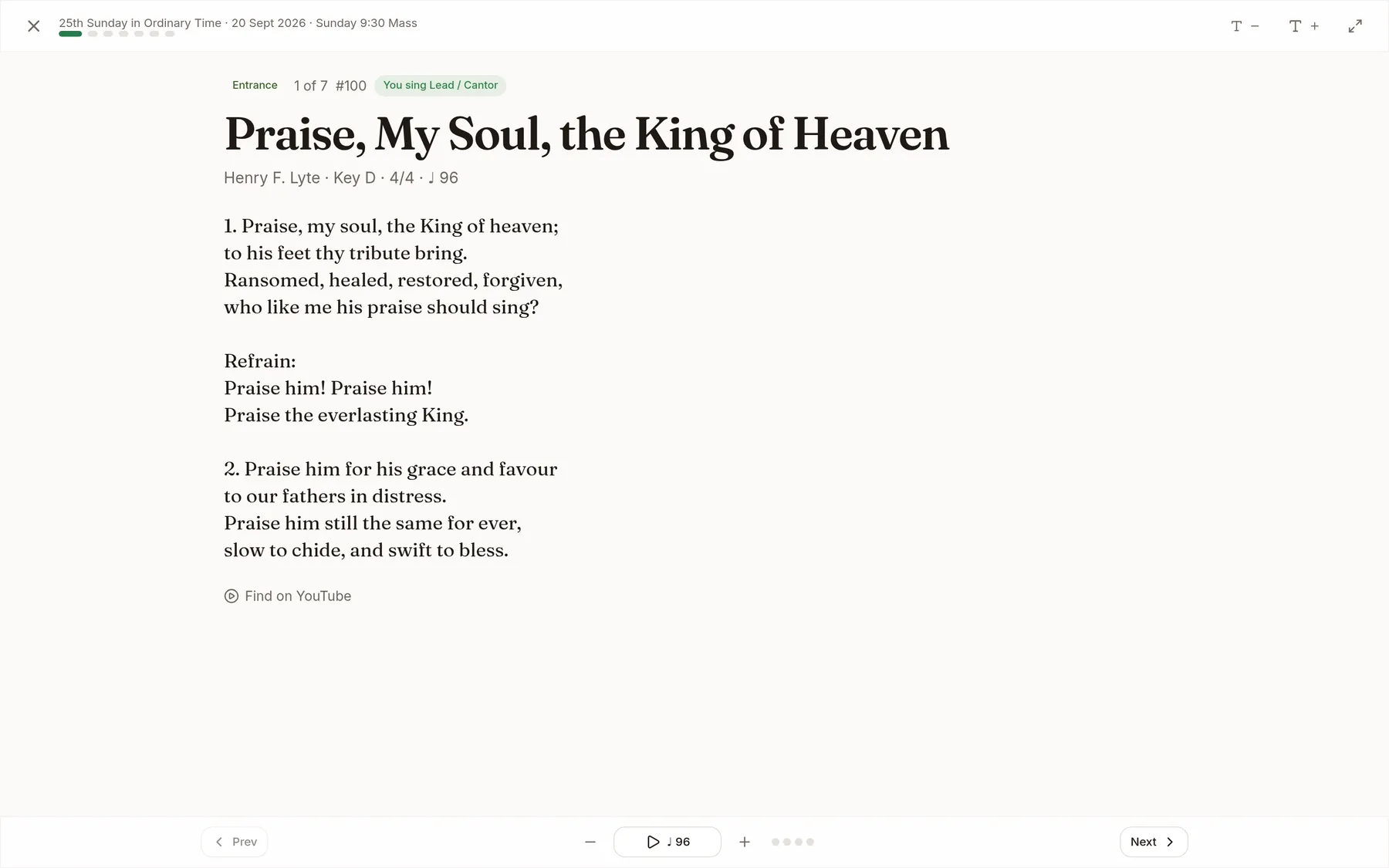
Liturgical calendar
The Calendar page lists the coming months from the regional calendar (Universalis), so weekday feasts and solemnities don't slip past.
- 1Sundays, feasts and solemnities are shown by default; switch to Every day to see memorials and weekdays too.
- 2Tap Service on a feast day to create a service named and coloured for it, or Plan to see its readings and suggestions first.
- 3The dashboard's Feasts on weekdays card shows the next few coming up.
- 4Choose your region (India, Goa & Daman, General…) in Settings.
Your week
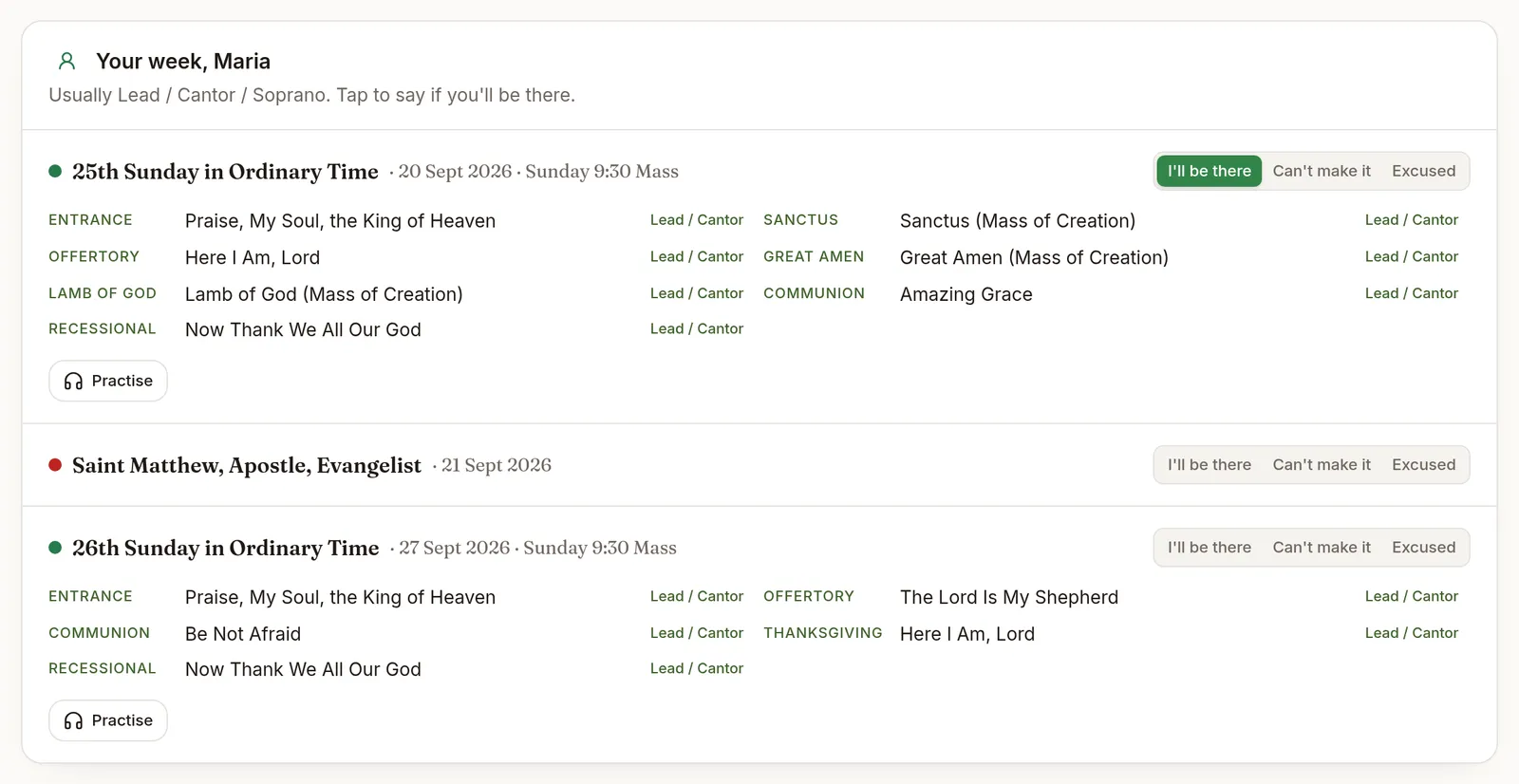
When a singer's email matches the account they sign in with, Cantate knows who they are.
- 1Admins: put each singer's email on their record on the Singers page.
- 2The dashboard then shows Your week: the coming services, your part in each hymn, and I'll be there / Can't make it / Excused.
- 3On a service, your own attendance row is always yours to change — even if you can't edit anything else.
Hymn library
Every hymn your choir sings lives in the library, with its history of when it was sung.
- 1Add a hymn from Library → Add a hymn, bulk import a list, or save a suggestion with the library button.
- 2Import a whole mass setting from a YouTube playlist: Library → Import a YouTube playlist. It reads the playlist, prefixes the mass’s name onto any track that doesn’t already carry it (so a bare “Kyrie” becomes “Mass of Renewal - Kyrie”), tags each one with its part, and shows you the whole list to tick before anything is saved. A recording you already chose is never replaced.
- 3Record the key or scale, time signature (4/4, 3/4, 6/8…) and tempo in BPM. They appear on services and in the WhatsApp message.
- 4Add the hymnal number, author, tags (e.g. lent, marian, communion) and links to sheet music.
Tags power “From your library” on the Plan page and the filters on Rediscover.
Lyrics
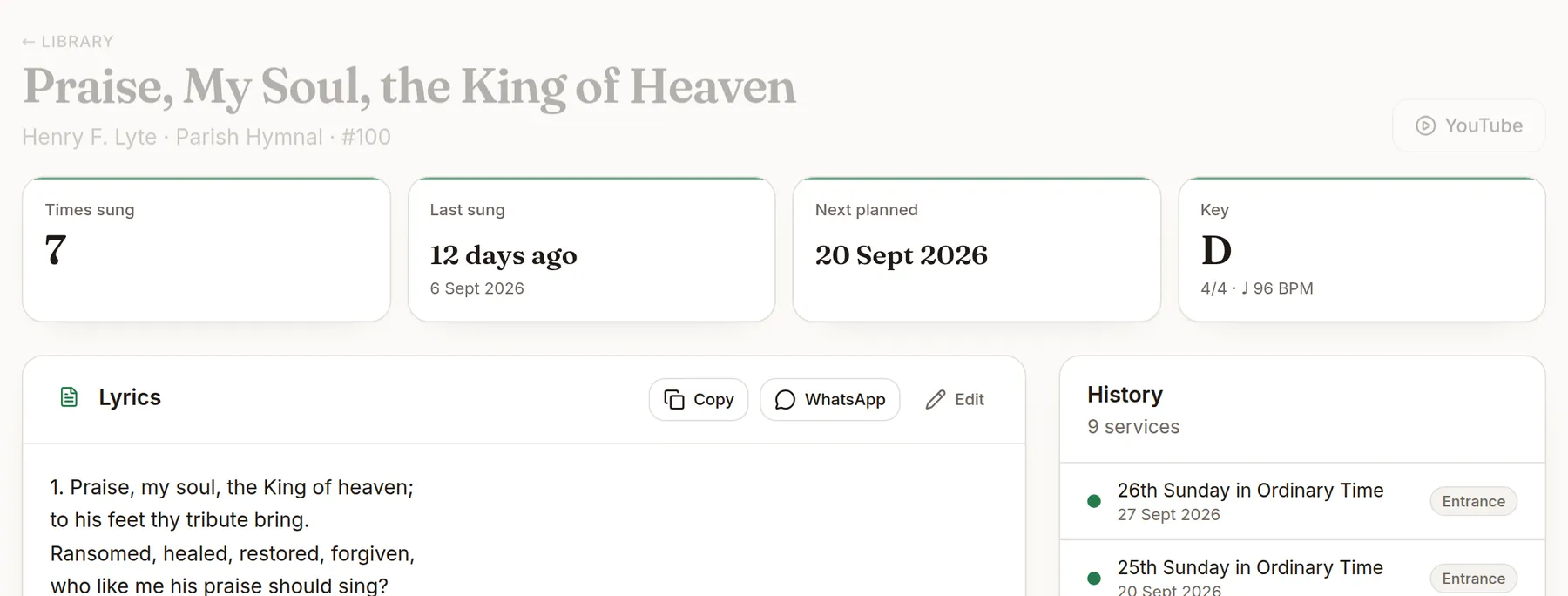
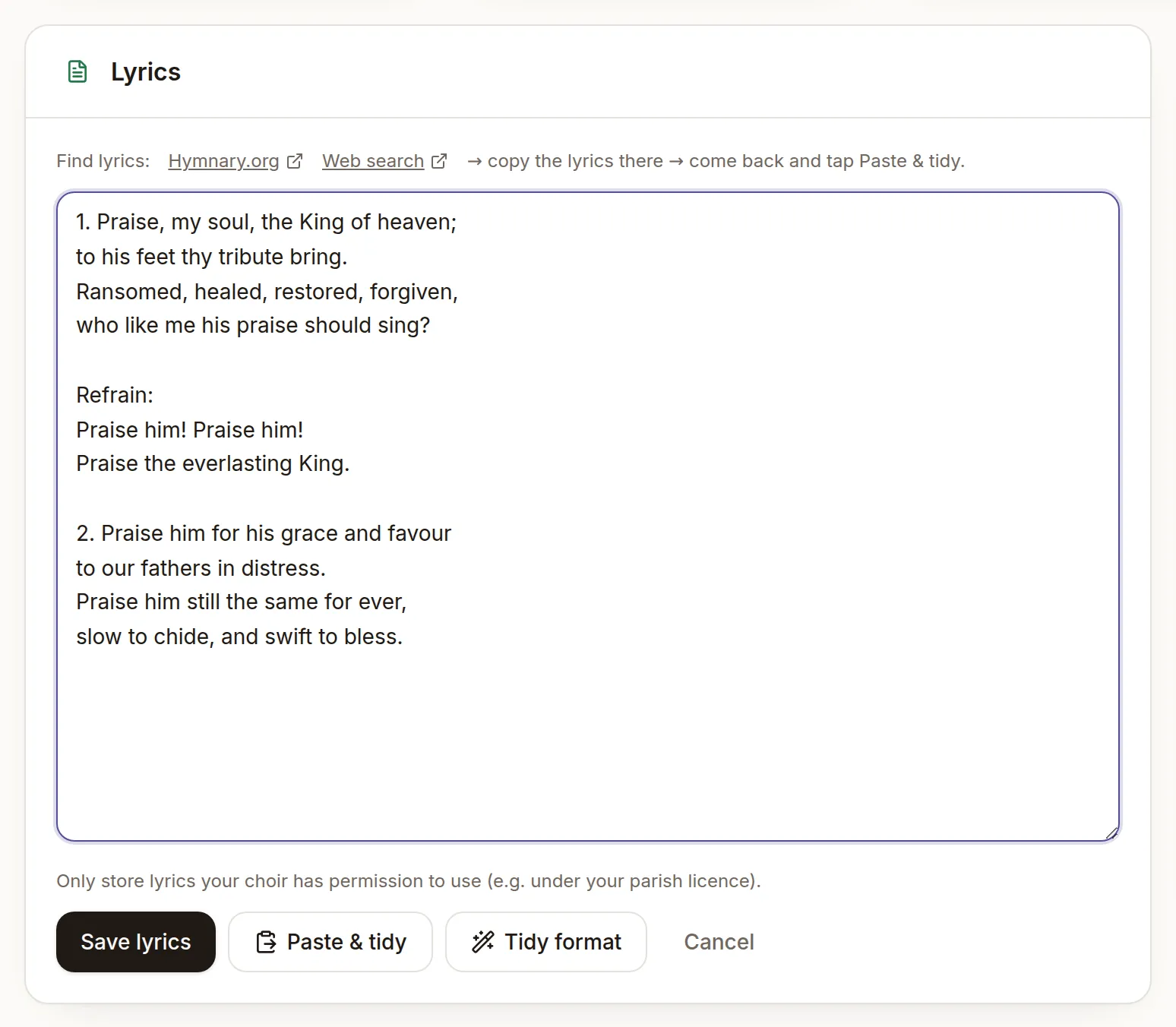
Keep the words with the hymn so everyone can read them on their phone, and send them before practice.
- 1On a hymn page, tap Add (or Edit) in the Lyrics card.
- 2Use Hymnary.org or Web search to find the text — it opens beside Cantate. Copy the lyrics there.
- 3Come back and tap Paste & tidy: the text is pasted, verses are numbered and the refrain is labelled.
- 4Pasted by hand? Tap Tidy format. Save lyrics when it looks right.
- 5Copy or WhatsApp sends the lyrics with the title, key, time signature and tempo.
Only store lyrics your choir has permission to use, for example under your parish licence.
Order of the Mass
Open Order of Mass to see each part in order, who says or sings it, and where the choir comes in. The full prayers are one tap away on Universalis.
- 1Every part the people say or sing shows its words in English — the responses, the Penitential Act, the Creed, the Lord's Prayer, and the sung Kyrie, Gloria, Holy, Mystery of Faith, Great Amen and Lamb of God. Where the missal gives a choice (three Penitential Acts, two Creeds, three acclamations) every option is shown.
- 2Put a hymn in one of those slots without typing its lyrics, and those words appear in Practice, marked as the standard words. They stay out of the Lyrics message — the choir knows them — and go out on their own with Send Mass parts when you want them.
- 3Admins: the short responses and the Lord's Prayer are already there. For the rest, open Add the words under each part and paste them from your missal once.
A setting's own lyrics always win — type them on the hymn if it repeats lines or adds a refrain.
Sheet music, part videos & recordings
Every hymn can carry its sheet music (PDF or photos), a separate YouTube link for each part (alto line, tenor line…) and short recordings, so the choir can practise from the real thing.
- 1On a hymn page, tap Part video, name the part (Alto, Tenor…) and paste its YouTube link. In practice mode the videos become tabs above the player.
- 2Use Upload (or drag files onto the card) for PDFs and photos of the score.
- 3Tap Record to capture a part with your phone's microphone, name it (e.g. “Alto, verse 2”) and it's saved with the hymn.
- 4Practice mode shows the sheet and plays the recordings beside the lyrics.
Needs a Vercel Blob store on the project (Storage → Blob); until then the card explains what to set up.
Year in review
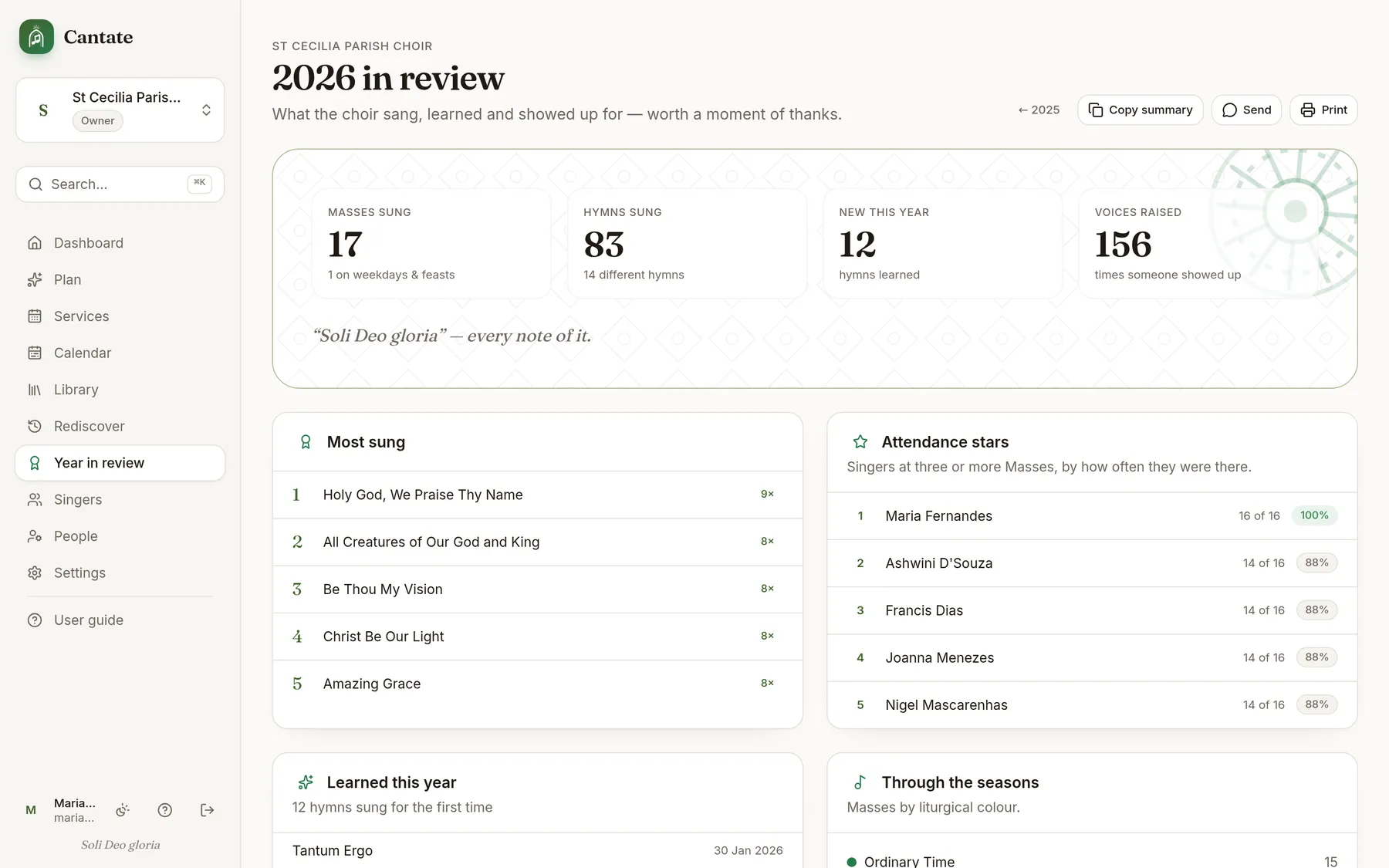
A page of thanks: what the choir sang, learned and showed up for this year, with a WhatsApp-ready summary.
- 1Open Year in review from the sidebar (or ⌘K).
- 2Copy summary or Send shares the highlights with the choir; Print makes a keepsake.
- 3Use the year arrows to look back.
Rediscover
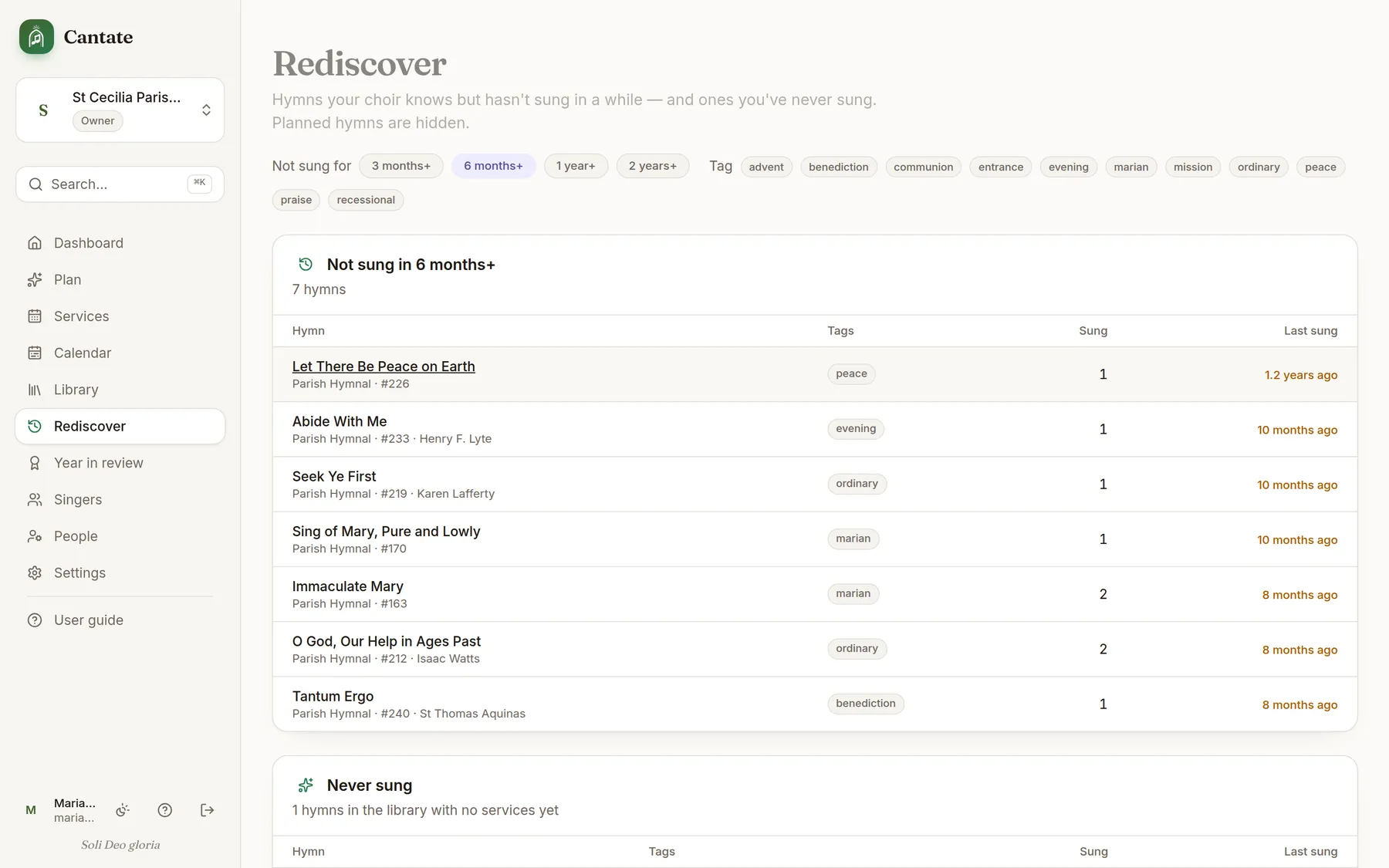
Rediscover lists hymns your choir knows but hasn't sung for a while, plus library hymns never sung.
- 1Choose how long (3 months, 6 months, 1 year, 2 years) and filter by tag.
- 2Planned hymns are hidden, so the list is what's genuinely waiting.
Change what counts as “a while” in Settings.
On your phone
Cantate is made for phones as much as laptops: the bottom bar gets you to Plan, Services and the Library in a tap.
- 1Open cantate.abelarodrigues.in in your phone's browser and sign in.
- 2Install it: on iPhone use Share → Add to Home Screen; on Android tap Install app in the browser menu. It opens full-screen with its own icon.
- 3Pages you've opened stay available when you lose signal — handy in a stone church.